
Find and manage your boards
The dashboard groups your boards by workspace. The sidebar holds workspace settings, agent setup and account settings.
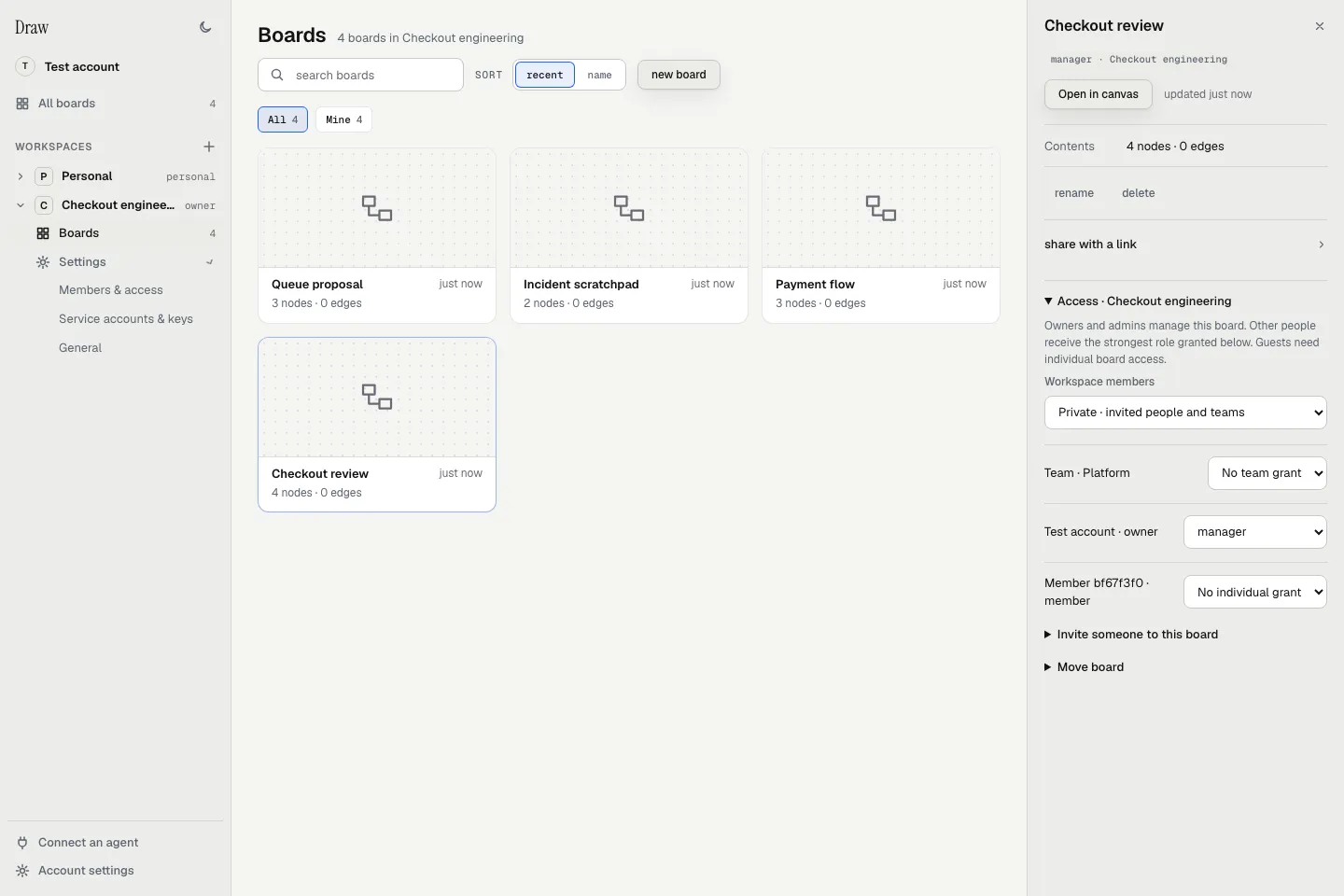
The current dashboard with local sample boards. Select a tile to inspect its details; click the board’s name to open its canvas.
Find a board
Section titled “Find a board”- All boards shows the boards you can access across workspaces.
- Expand a workspace in the sidebar, then choose Boards to limit the gallery to that workspace.
- Outside workspaces appears when you have boards without a workspace.
- Search by board name, use the access filters, or sort by recent or name.
Agent sessions shows up to three session boards updated within the last hour. Use the checkpoint number and timestamp to judge recency.
To create a board, choose new board, enter its name and choose its owner. After creating it, use Open in canvas to start drawing.
Open board details
Section titled “Open board details”Click the tile’s illustration to open its details panel. Open in canvas opens the board. Your access determines which management controls appear.
- Use rename or delete to manage the selected board. Deletion requires typing its name.
- Expand share with a link to enable, copy or revoke a board link.
- For a workspace board, expand Access to manage workspace, team and individual grants.
- Within access controls, use Invite someone to this board for a board invitation, or Move board to change its workspace.
Moving a board resets incompatible access grants and requires confirmation. Inspect access after the move. Workspaces and access explains the roles.
Use the canvas Share menu to choose whether a link includes Code or Threats. Boards and sharing explains those choices.
Find the right settings
Section titled “Find the right settings”Expand a workspace and its Settings group:
| Control | Where it takes you |
|---|---|
| Members & access | Members, Teams and Invitations tabs for a shared workspace |
| Service accounts & keys | Automation accounts and keys, for shared-workspace owners and admins |
| General | Workspace name, type and your role |
The + beside Workspaces creates a workspace. Personal workspaces do not show shared membership or service-account controls.
At the bottom of the sidebar, Connect an agent opens the agent setup guide. Account settings holds appearance, linked agents, sign-out and the Code section. Code snippet storage remains off by default; see Your data and code consent.
On a narrow screen, choose Open navigation to show the sidebar.