
Workspaces and access
A workspace groups boards and manages access for a company, team or engagement. Each account can also have a personal workspace. Signing in authenticates a person. Workspace membership and board grants determine what that person can do.
Create a workspace
Section titled “Create a workspace”Choose the + beside Workspaces in the dashboard sidebar. Enter a name and choose create workspace. Invite people opens the new workspace’s invitations.
Expand a workspace, then Settings, to find its controls:
- Members & access has Members, Teams and Invitations tabs.
- Service accounts & keys is available to shared-workspace owners and admins.
- General shows the workspace name, type and your role. Owners and admins can rename it here.
Choose the workspace’s Boards entry to see its board gallery. See Find and manage your boards for board details and account settings.
Invite a collaborator
Section titled “Invite a collaborator”- Expand the workspace in the sidebar, then open Settings → Members & access.
- Choose Invitations, or use invite members from the Members tab.
- Choose the invitation role and select create invitation.
- Send the invitation link to the intended person.
- Ask that person to open the link, sign in and accept it.
Invitations expire after seven days and work once. Workspace managers can revoke outstanding invitations. Anyone holding an unused invitation can accept it, so send the link directly to the intended person.
A workspace invitation creates full membership. A board invitation grants that board and can add guest membership. Full membership alone does not expose private boards.
For one board, select its tile in the gallery. In its details panel, expand Access, then Invite someone to this board. Use the workspace’s Teams tab to create teams and manage their membership.
Choose the access
Section titled “Choose the access”| Role | What it permits |
|---|---|
| Workspace owner or admin | Manage members, teams and workspace-owned boards, subject to owner restrictions |
| Workspace member | Receive workspace-wide, team and direct board grants |
| Workspace guest | Receive explicit board grants |
| Board viewer | Read the board |
| Board editor | Read and edit the board |
| Board manager | Edit, rename, delete and manage board sharing |
The strongest applicable board role wins. Workspace owners and admins can move boards between workspaces. A move also includes dependent branches or architecture history. It resets incompatible grants, so inspect access after the move.
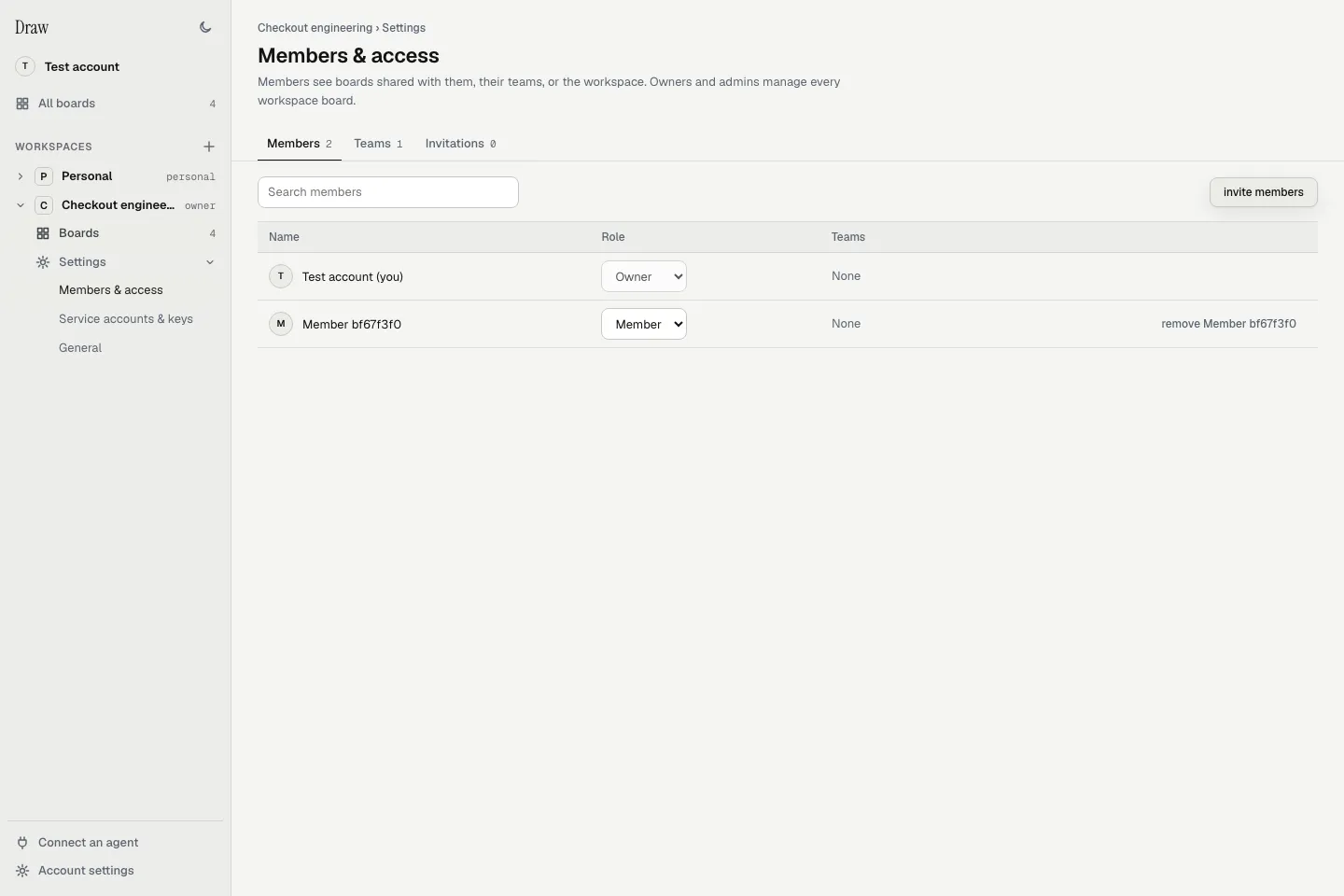
Local sample accounts in the current dashboard. Workspace membership has its own roles. Board grants determine access to individual boards.
Give automation a scoped key
Section titled “Give automation a scoped key”In a shared workspace, an owner or admin can open Settings → Service accounts & keys from that workspace in the sidebar:
- Create a named account with Read or Edit access.
- Choose all workspace boards or selected boards.
- Create an API key with the same or narrower access and an optional expiry.
- Copy the key immediately. The dashboard shows it once.
- Store the key in your automation’s secret store.
The automation sends Authorization: Bearer <key> to the MCP endpoint.
Managed keys start with rcak_. The service stores only their digest.
For rotation, create a replacement, update the automation, then revoke the old key.
Service accounts operate on existing boards. They cannot create boards, start traffic taps, manage sharing or memberships, or perform human reviews. Their current scope caps every key. Revocation and account changes affect existing keys. Personal workspaces do not have service accounts.
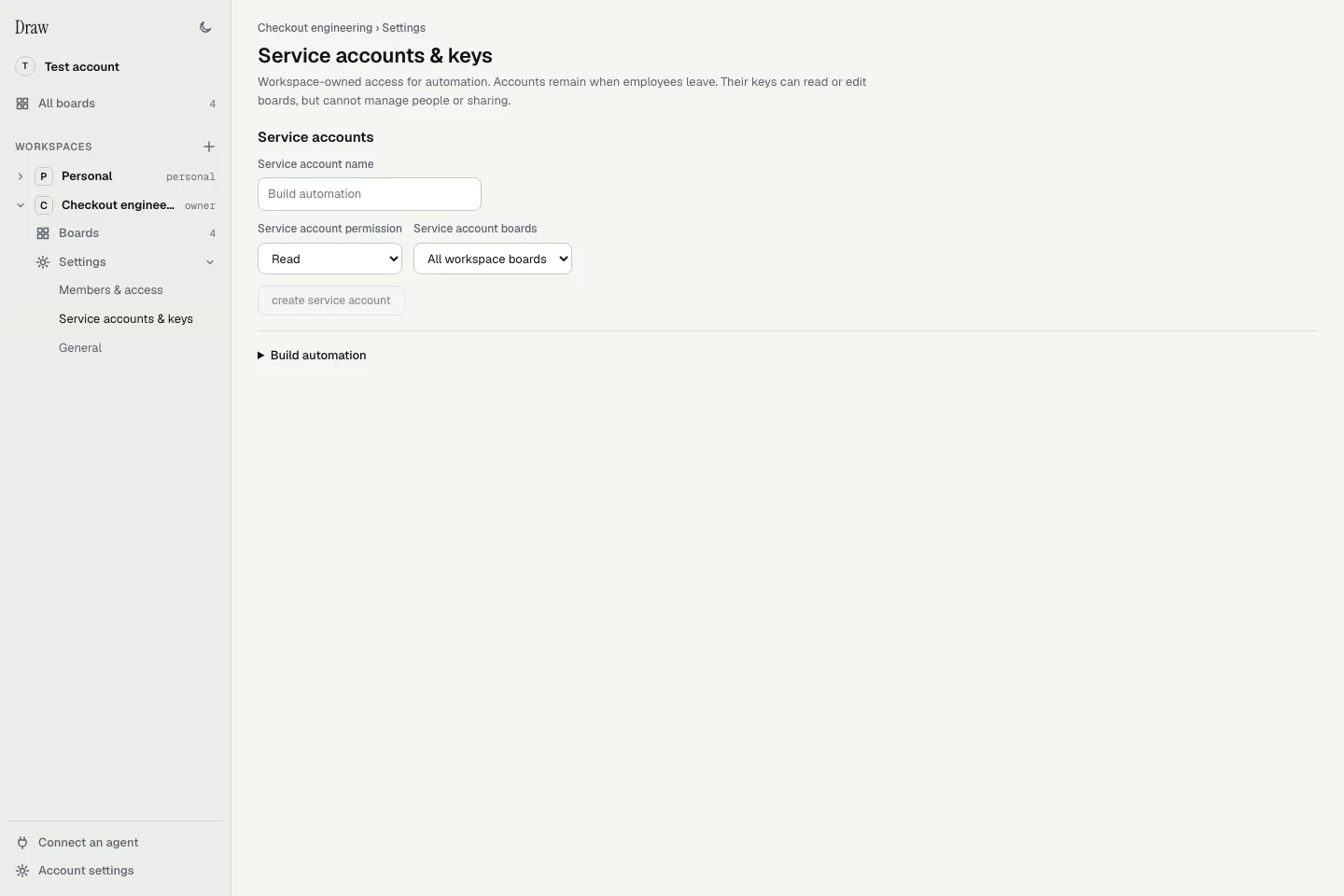
A local sample account named Build automation. No API key is shown.
A linked personal agent is different from a service account. It needs an explicit board grant, and its linked person must retain edit access. Keep browser session tokens and infrastructure credentials out of agent instructions.
Boards and sharing · Data and consent · Self-host quickstart