
Boards and sharing
A board is a live canvas of components and the flows between them. You and your agent see each other’s edits, cursor and selection. Notes and text blocks add explanations beside the diagram.
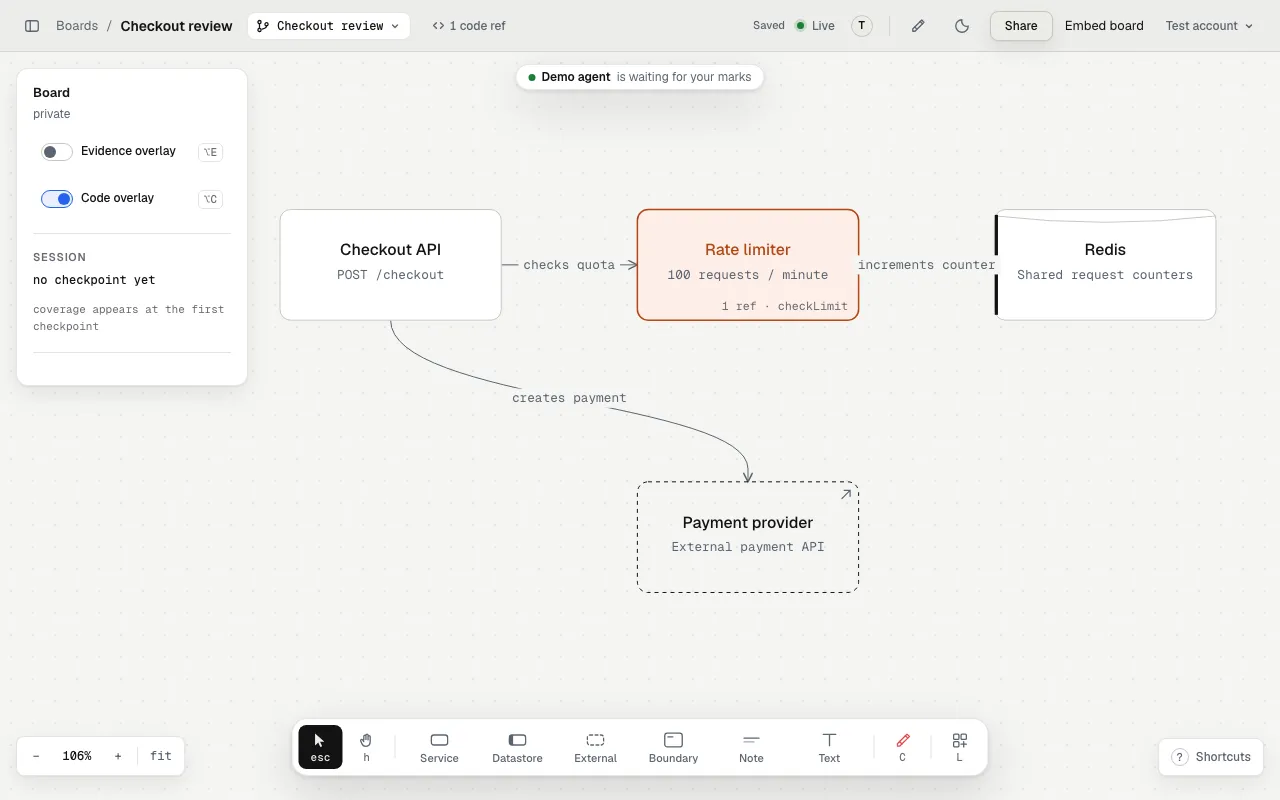
A sample request path in the local app. Code-ref badges connect components to their code.
Start a board
Section titled “Start a board”Open a draw board for this task and post its link. Draw what you build as you go.The agent calls start_session and posts the board link. Boards opened by your
linked agent belong to you. A drawing-only board works without a local checkout.
Code refs and checkpoints need a session tied to your checkout.
Every write uses the same drawing rules: a 4px grid, at most two focal nodes, and a fixed set of colors. A refused write explains the rule it breaks.
Read the evidence
Section titled “Read the evidence”An agent can hide imported components in named groups. The board counts hidden nodes and provides controls to show them again. It does not silently delete imported architecture. Connections without current evidence remain visible as unverified claims.
Use the red crayon to send feedback on a node. Use a branch to propose a different design.
Sharing
Section titled “Sharing”A personal board starts private. Workspace boards follow their workspace and board grants. The access line under the board name describes your current access.
- Open Share and enable Share with link.
- Choose Can view or Can edit.
- Choose whether to include Threats or Code.
- Copy the share link to the intended reader.
| Link | What readers can do |
|---|---|
| Can view | Anyone holding the link can view included content, without sign-in. |
| Can edit | Anyone holding the link can view. Signed-in readers can also edit. |
New view links exclude Threats and Code by default. Threats includes markers, details and blast radius. Code includes ref metadata and any stored snippets. Edit links always include code, because undo can restore edited content.
Code sharing does not enable snippet storage. The owner’s code consent controls whether snippet text exists. With storage off, code access still exposes paths, symbols, line ranges and repository names.
The header’s exposure control opens the sharing choices so you can inspect what a link includes. Turning off link sharing revokes that link. It does not remove workspace grants, public access or separately enabled embeds.
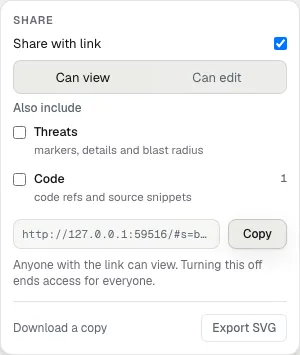
A view link with both sensitive layers excluded.
Share less than the whole board
Section titled “Share less than the whole board”A chart embed publishes one chart without granting board access. A board embed publishes the visible diagram through a separate link. Disabling a board share link does not disable either embed.
Keep or delete a board
Section titled “Keep or delete a board”In the dashboard, click a board tile to open its details panel. Use the board name or Open in canvas to open the drawing. Rename, delete, sharing and workspace access controls appear in the details panel when your role permits them.
Keep a scratch board for a write-up, or delete it from the dashboard. Boards do not expire automatically. The command palette also provides deletion where your access allows it. Saved library items need separate deletion.